Line up every photo with Ghost mode
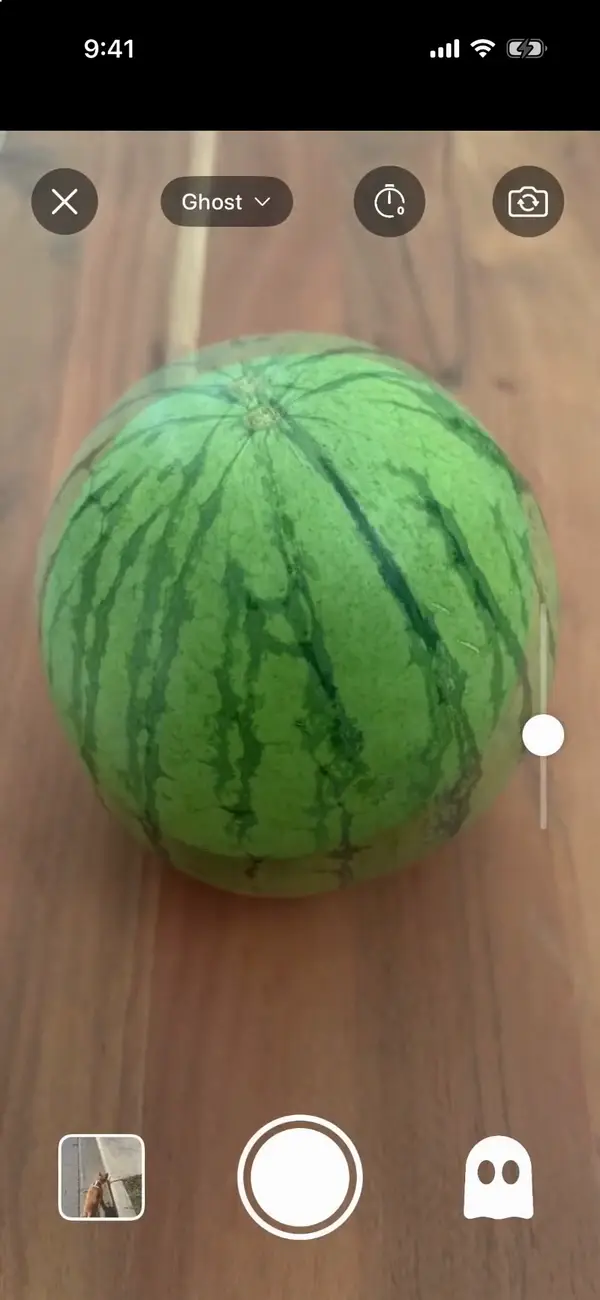
A faint copy of an earlier photo, or a body outline, sits over the camera so every shot lines up.
Written for Then & Now 2.4.
- 1
Open the album and tap the round camera button in the middle of the tab bar.
- 2
Tap the overlay button to the right of the shutter until it says "Ghost" (or "Ghost & Grid"). Each tap moves through None, Grid, Ghost and Ghost & Grid.
- 3
Drag the slider on the right edge to make the ghost fainter or stronger.
- 4
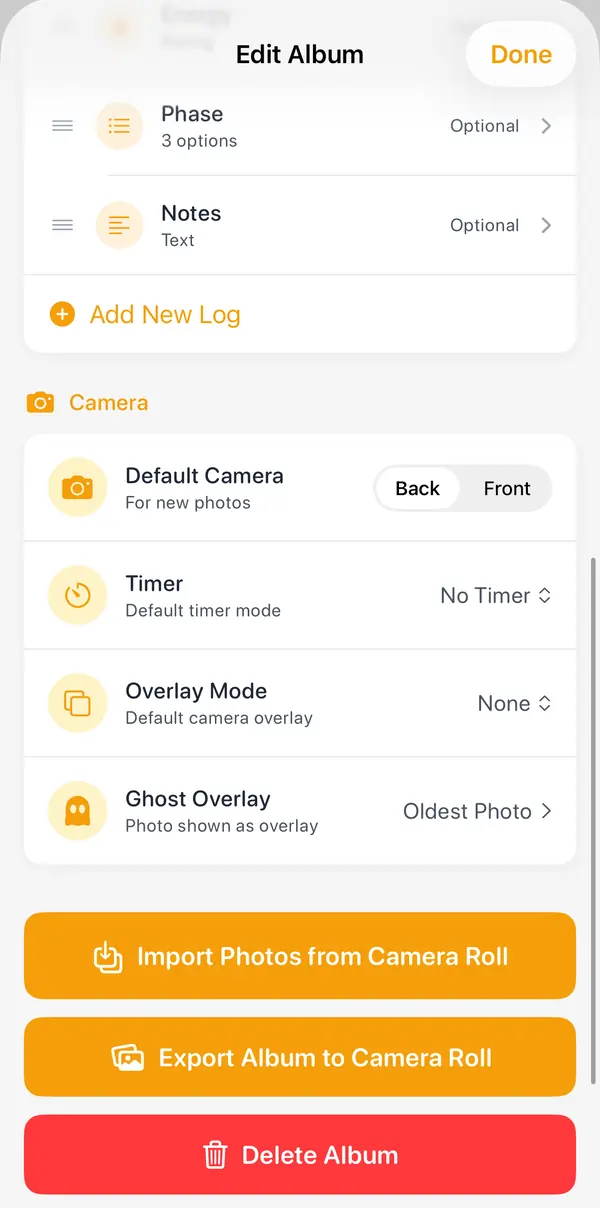
To pick the ghost, tap the pencil at the top right of the album, then "Ghost Overlay": "Oldest Photo", "Newest Photo", "Choose Photo" or "Default Template" (a body outline).
- 5
To have the ghost on every time, set "Overlay Mode" to Ghost in the same Camera section, then tap "Done".
- 6
Hands free: tap the timer button until you see "Say "Now" to capture", step back, and say "Now". Say "Redo" to take it again.
Good to know
- The camera remembers the overlay, fade and timer for each album once you save a photo.
- On the preview, tap "Peek" to check your shot against the ghost.
- The voice timer understands English, and needs the microphone and Speech Recognition turned on.
- Importing older photos? Crop & Align has a ghost button too, so you can line them up after the fact.
More guides
- Add measurements to your photosRecord your weight, a rating or anything else with every photo, and see it on Trends.
- Change a measurement on an older photoFix a typo or add a number you forgot, on any photo in the album.
- Export a comparisonMake a side-by-side picture, a slider photo or video, or a timelapse, with dates and your numbers on it.
- Back up, sync and move to a new iPhoneWhere your photos live, how iCloud Sync works, and how to copy everything to Photos.
- Redeem a code and check your planUse a promo or gift code, see which plan you have, and restore a purchase.