Add measurements to your photos
Record your weight, a rating or anything else with every photo, and see it on Trends.
Written for Then & Now 2.4.
- 1
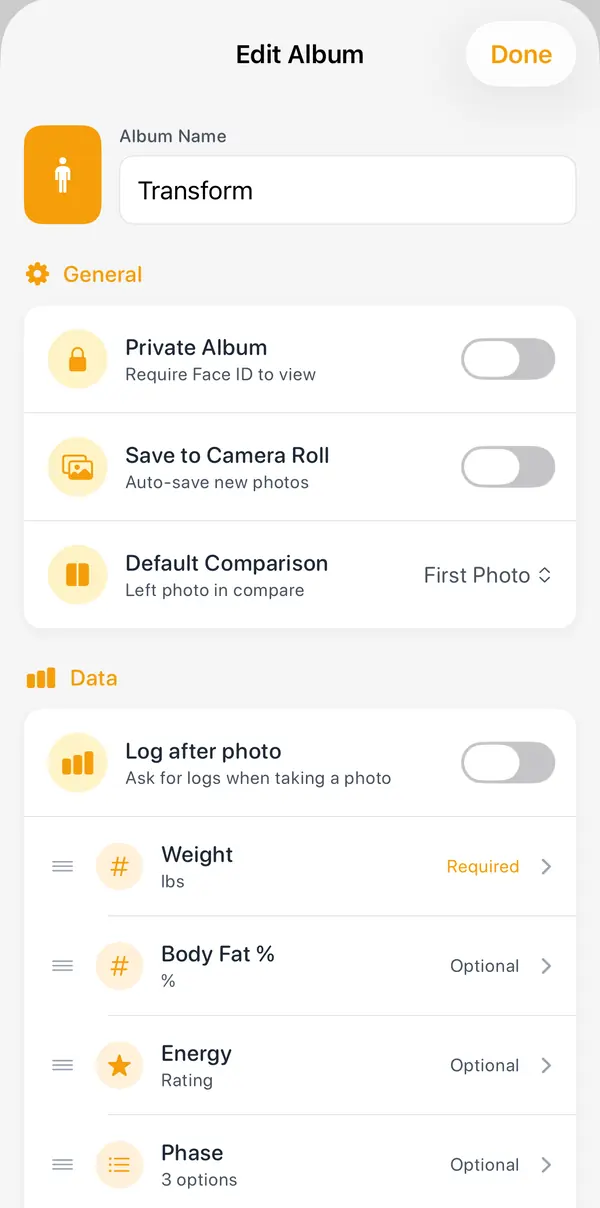
Open the album and tap the pencil at the top right ("Edit Album").
- 2
In the "Data" section, tap "Add New Log".
- 3
Name it and choose a type: "Number", "Rating", "Text", "Picklist" or "Health" (from Apple Health).
- 4
For a number, pick its unit, such as Weight, Length or Percentage. For a pick-list, add each choice.
- 5
Turn on "Required" if you like, then tap "Add". Make sure "Log after photo" is on, then tap "Done".
- 6
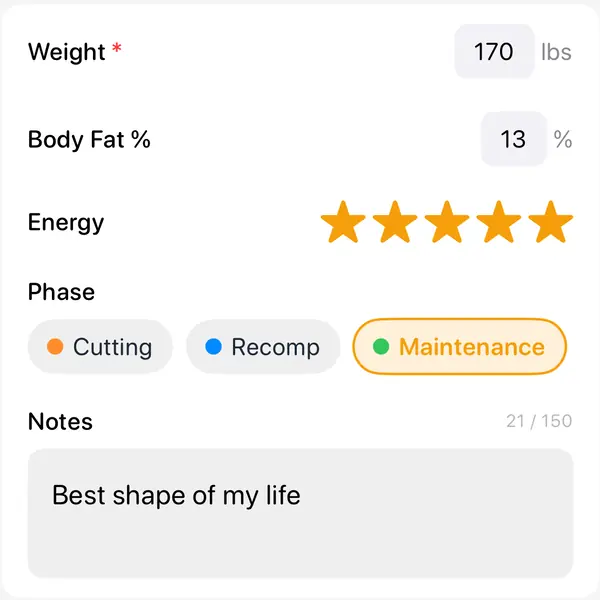
After your next photo, the "Add Data" screen opens. Fill it in and tap "Save".
Good to know
- Units follow More → Settings → Units (Imperial or Metric).
- "Save" stays grey until every required field (marked *) is filled in.
- Health values are filled in for you and can't be edited in Then & Now.
More guides
- Line up every photo with Ghost modeA faint copy of an earlier photo, or a body outline, sits over the camera so every shot lines up.
- Change a measurement on an older photoFix a typo or add a number you forgot, on any photo in the album.
- Export a comparisonMake a side-by-side picture, a slider photo or video, or a timelapse, with dates and your numbers on it.
- Back up, sync and move to a new iPhoneWhere your photos live, how iCloud Sync works, and how to copy everything to Photos.
- Redeem a code and check your planUse a promo or gift code, see which plan you have, and restore a purchase.