Back up, sync and move to a new iPhone
Where your photos live, how iCloud Sync works, and how to copy everything to Photos.
Written for Then & Now 2.4.
- 1
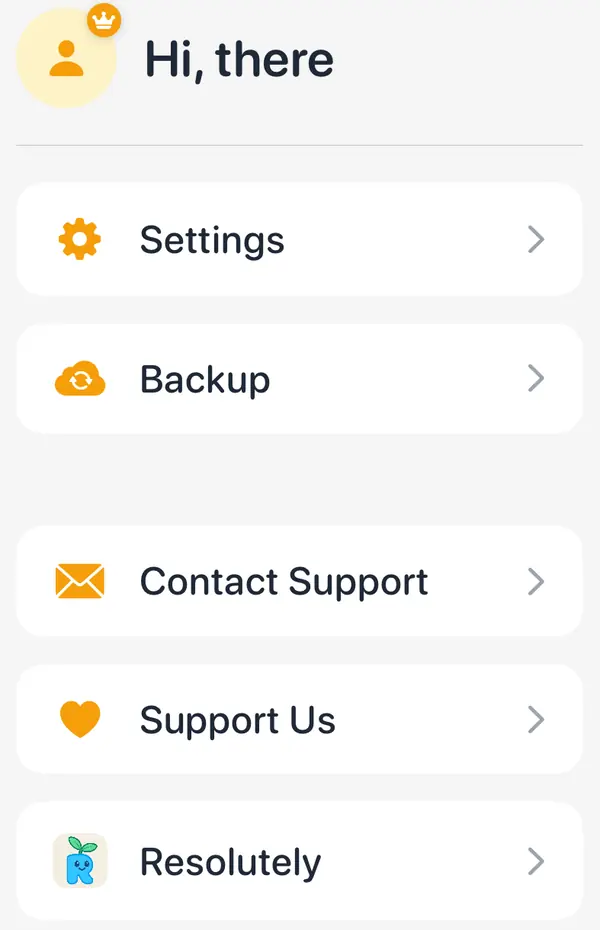
Tap "More" at the far right of the tab bar, then "Backup".
- 2
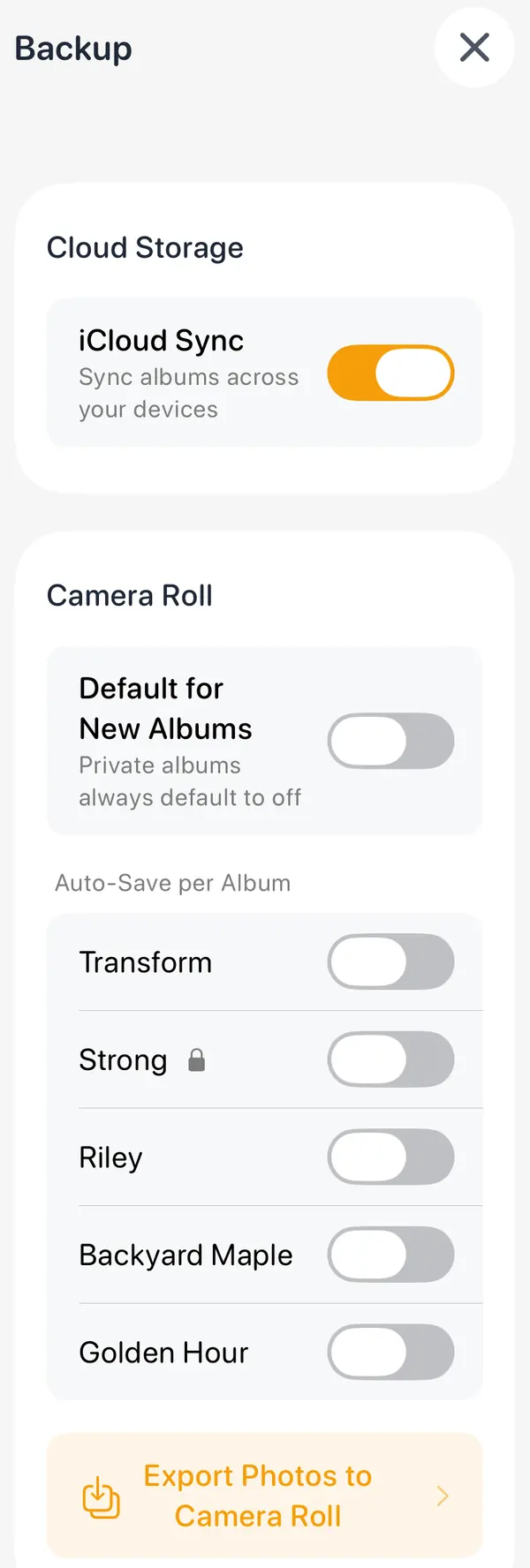
"iCloud Sync" is on unless you've turned it off. With it on, your albums are kept in your own iCloud.
- 3
To copy photos to Photos as you take them, turn on "Auto-Save per Album" for the albums you want.
- 4
To copy everything now, tap "Export Photos to Camera Roll", choose the albums, and export.
Good to know
- New iPhone: keep iCloud Sync on, sign in with the same Apple Account, install Then & Now and open it. Your albums download, and Premium comes back on its own (or tap "Restore").
- Turning iCloud Sync off leaves what's already in iCloud there ("Your data will remain in iCloud but won't sync to this device"). Reopen the app afterwards.
- Apple Health values stay on each iPhone and aren't synced.
More guides
- Line up every photo with Ghost modeA faint copy of an earlier photo, or a body outline, sits over the camera so every shot lines up.
- Add measurements to your photosRecord your weight, a rating or anything else with every photo, and see it on Trends.
- Change a measurement on an older photoFix a typo or add a number you forgot, on any photo in the album.
- Export a comparisonMake a side-by-side picture, a slider photo or video, or a timelapse, with dates and your numbers on it.
- Redeem a code and check your planUse a promo or gift code, see which plan you have, and restore a purchase.