Export a comparison
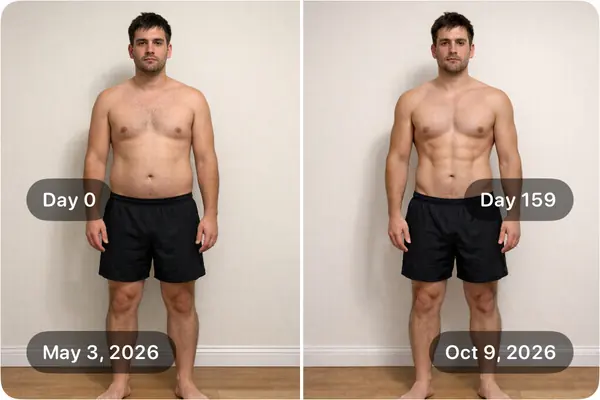
Make a side-by-side picture, a slider photo or video, or a timelapse, with dates and your numbers on it.
Written for Then & Now 2.4.
- 1
In the album, choose "2 x 1" (side by side), "Slider" or "Video" (timelapse).
- 2
For 2 x 1 or Slider, tap the left or right photo, then a thumbnail, to choose which two you compare.
- 3
Tap the share button at the top right.
- 4
Under "Overlays", turn on "Date", "Data" or "Days" for each photo, or "Blur". Drag an overlay to move it, and pinch the blur circle to resize it.
- 5
For a slider, choose "Photo" or "Video". For a timelapse, set the speed, transition and direction.
- 6
Choose "Standard", "High" or "Original", tap "Export", then save or send it.
Good to know
- On the free plan, exports carry a small "Then & Now App" logo; Premium removes it.
- A timelapse uses every photo in the album.
- The left photo starts from the album's "Default Comparison" (the first photo, unless you change it).
More guides
- Line up every photo with Ghost modeA faint copy of an earlier photo, or a body outline, sits over the camera so every shot lines up.
- Add measurements to your photosRecord your weight, a rating or anything else with every photo, and see it on Trends.
- Change a measurement on an older photoFix a typo or add a number you forgot, on any photo in the album.
- Back up, sync and move to a new iPhoneWhere your photos live, how iCloud Sync works, and how to copy everything to Photos.
- Redeem a code and check your planUse a promo or gift code, see which plan you have, and restore a purchase.